Install FTL: Hyperspace on Steam Deck with ftlman
ftlman is the mod manager built for Hyperspace. It downloads whichever Hyperspace release you pick, applies it to your copy of FTL, and keeps your mods in one list you can reorder and re-apply whenever you like. The Deck runs the native Linux build, so nothing needs downgrading, but you will need desktop mode to run ftlman.
-
Switch to desktop mode
Section titled “Switch to desktop mode”Press the Steam button, then Power, then Switch to Desktop.
-
Steam settings
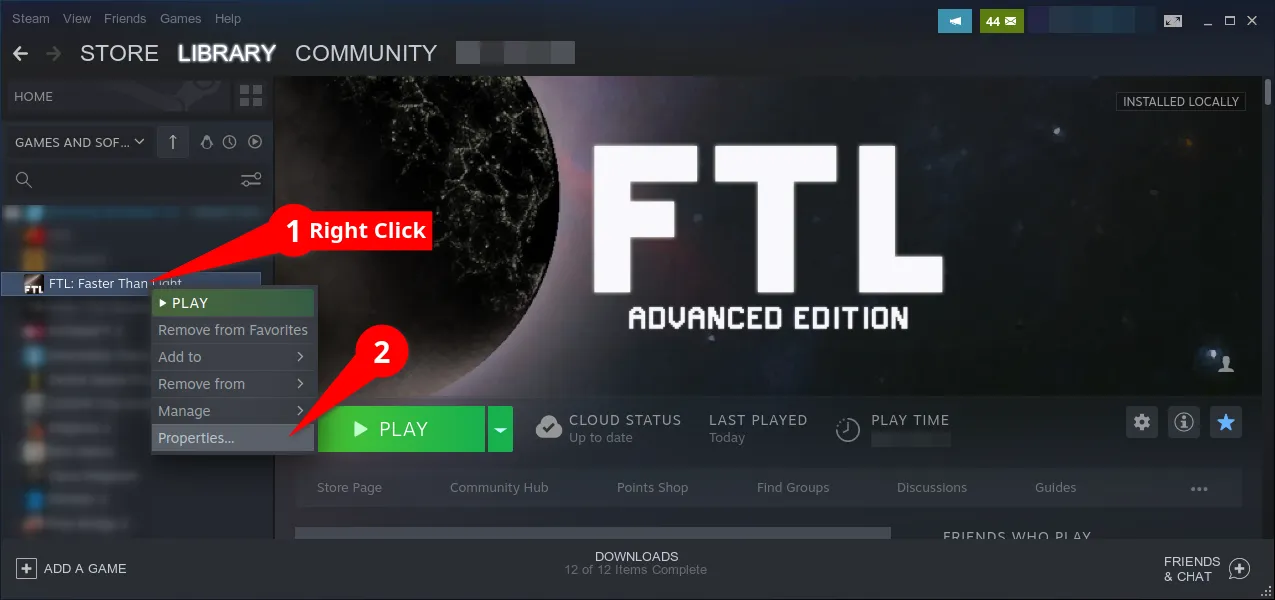
Section titled “Steam settings”Right-click FTL: Faster Than Light in your library and open Properties.
Show me how to open Properties
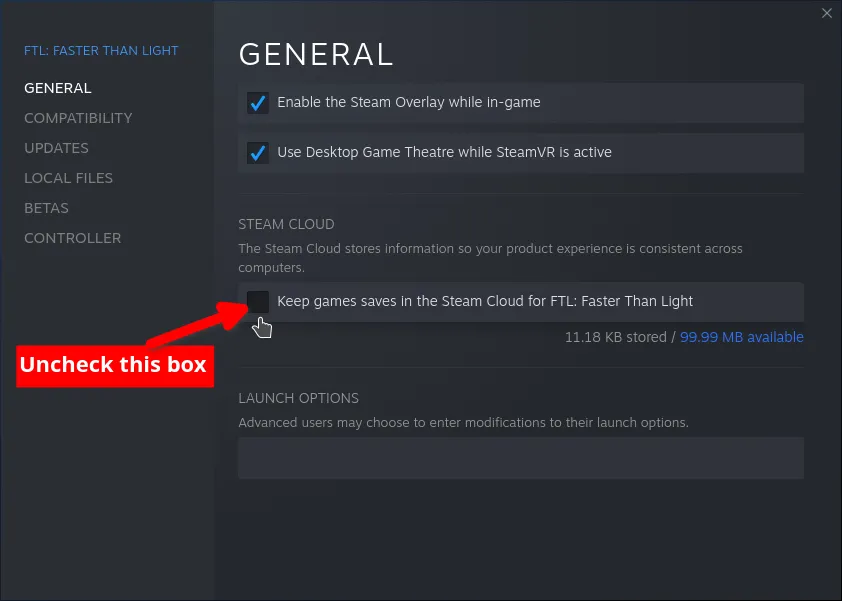
Under General, untick Keep game saves in the Steam Cloud. Turn off Steam Cloud first. It restores outdated saves with broken state, which can keep Hyperspace from launching and will undo any save fix you try later.
Show me the checkbox
Then under Updates, set automatic updates to Only update this game when I launch it.
Your saves live in
~/.local/share/FasterThanLight. Hidden folders are not shown by default, so press Ctrl-H in your file manager, or paste the path into its location bar.Rename
FasterThanLighttoFasterThanLight-backup, then launch FTL. The game makes a fresh folder, and your original saves stay in the backup if you ever want them back.Do this once, right after turning Steam Cloud off. Cloud sync leaves behind a save that Hyperspace cannot read, which freezes the game at the end of the loading bar.
-
Set up ftlman
Section titled “Set up ftlman”Ftlman is the recomended mod manager for FTL: Hyperspace modding. Actively maintained and supports Hyperspace updates
- Download the build for your machine from the ftlman releases page.
- Extract the
ftlmanfolder anywhere you like. It does not have to live in your FTL directory. - If FTL is currently modded, revert it to vanilla first.
- Run
ftlman. A Steam install is detected automatically. If yours sits somewhere non-standard, or you have more than one copy and want a specific one, open Settings and set FTL data directory yourself.
-
Install Hyperspace
Section titled “Install Hyperspace”- At the top left of the ftlman window is a Hyperspace dropdown listing every release. Pick one. Take the newest unless a mod you want specifically asks for an older one, and note that Multiverse always wants the newest.
- Press Apply. ftlman downloads it and installs it for you, so there is nothing to copy into your FTL folder by hand.
-
Add your mods
Section titled “Add your mods”- Put your mods in the
modsfolder inside your ftlman folder. The download already contains one. - Press Scan in the top right so ftlman picks up what you just added.
- Tick the mods you want. Order matters here: drag them into place, because some mods have to sit above others. The mod’s own page will say when it does.
- Press Apply.
- Put your mods in the
-
Check it worked
Section titled “Check it worked”Launch FTL. About halfway through the loading screen, and again on the menu, a small version string appears in the top right. That is Hyperspace reporting itself, and it means the binary is loaded.
If your mod’s main menu comes up with no errors, you are done.
Hyperspace is now installed. Return to gaming mode and launch FTL as usual. Everything below is optional.
Adding Multiverse
Section titled “Adding Multiverse”Multiverse is the largest mod built on Hyperspace, and it installs differently from everything else.
- Open the Multiverse release thread and scroll to DOWNLOAD RAW FILES (OTHER PLATFORMS, UPDATES, MANUAL INSTALL). Ignore the installer above it, that one is Windows-only and does its own thing.
- Download both files listed there, the Assets File and the Data File.
- Put both
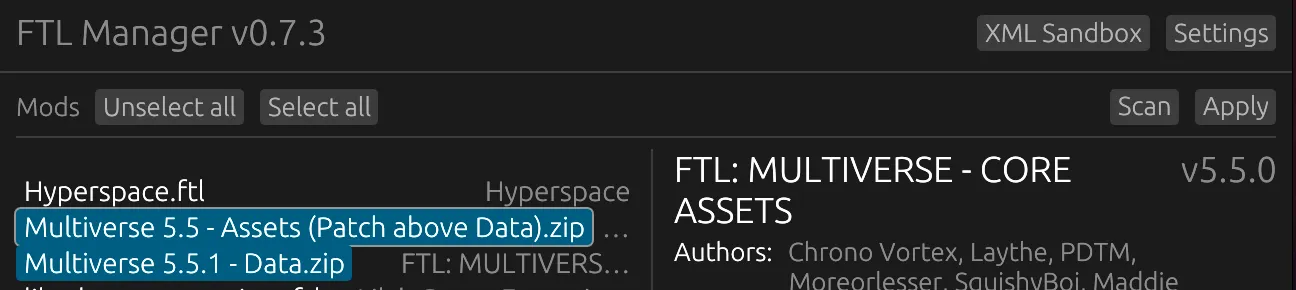
.zipfiles in your mod manager’smodsfolder. - Patch them in this order, and nothing else:
- Press Scan in the top right so the new files show up
- Drag Multiverse Assets above Multiverse Data
- Tick both
- Leave Hyperspace unticked
- Press Apply
Show me what it should look like
Updating
Section titled “Updating”Open ftlman in desktop mode, pick the newer release from the Hyperspace dropdown and press Apply. Your saves are not affected.
Uninstalling
Section titled “Uninstalling”- Clear the Hyperspace dropdown.
- Untick every mod.
- Press Apply.
That puts ftl.dat and your FTL folder back to vanilla in one go.